Change Password
Update your account password securely using a two-step verification process. Users who sign in using Google or GitHub cannot change their password from the application, since authentication is managed externally.
Password Change Process
Step 1: Verify OTP
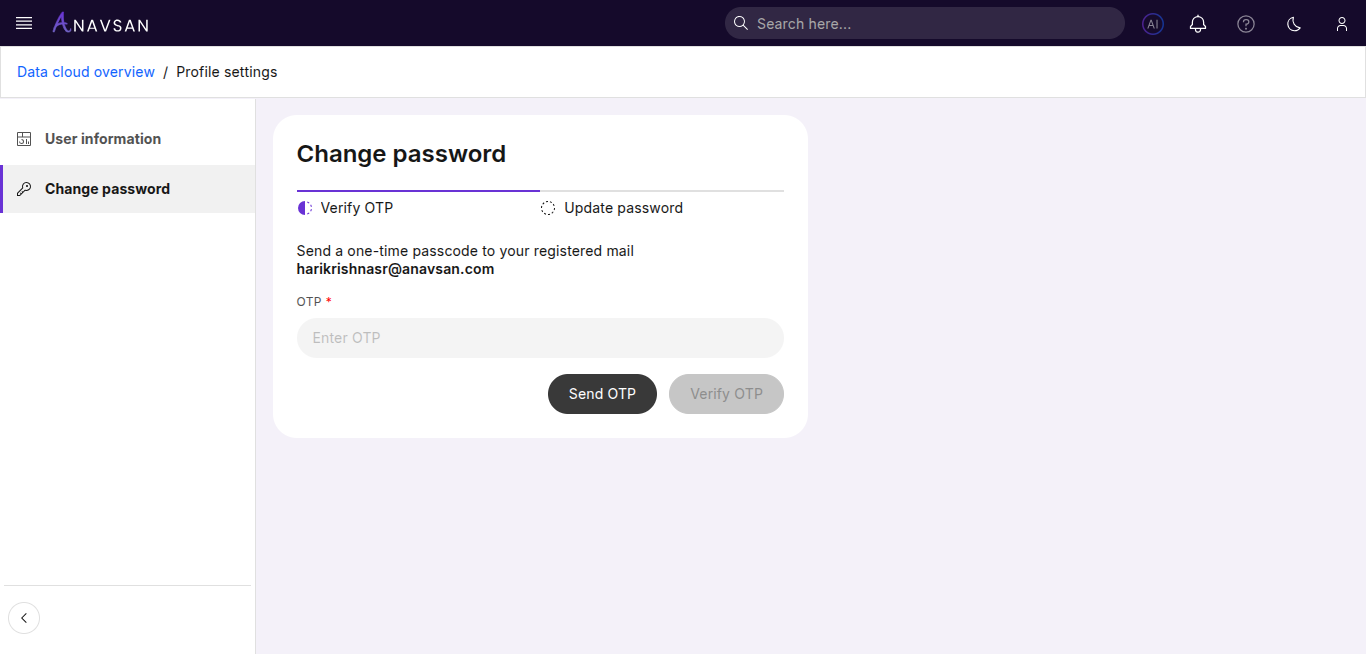
- Click Send OTP to receive a one-time passcode at your registered email
- Check your email for the OTP code
- Enter the OTP in the input field
- Click Verify OTP to proceed
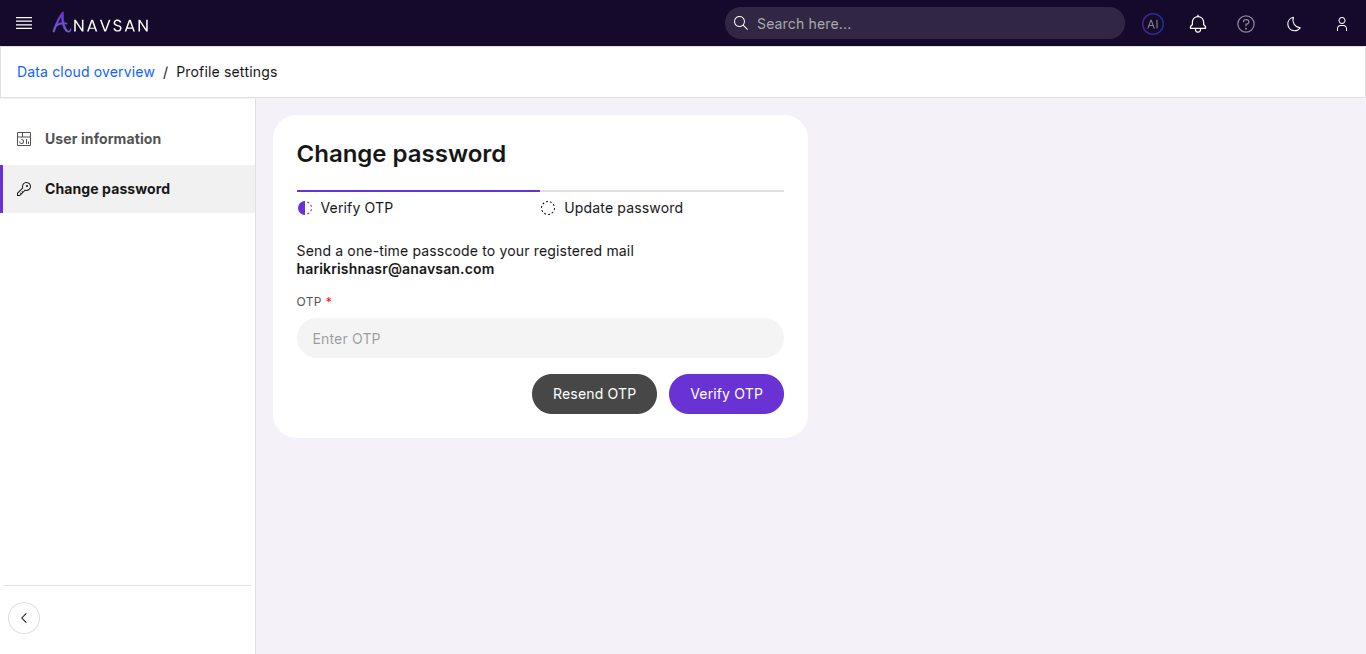
Note: If you don't receive the OTP, click Resend OTP to request a new code.
Step 2: Update Password
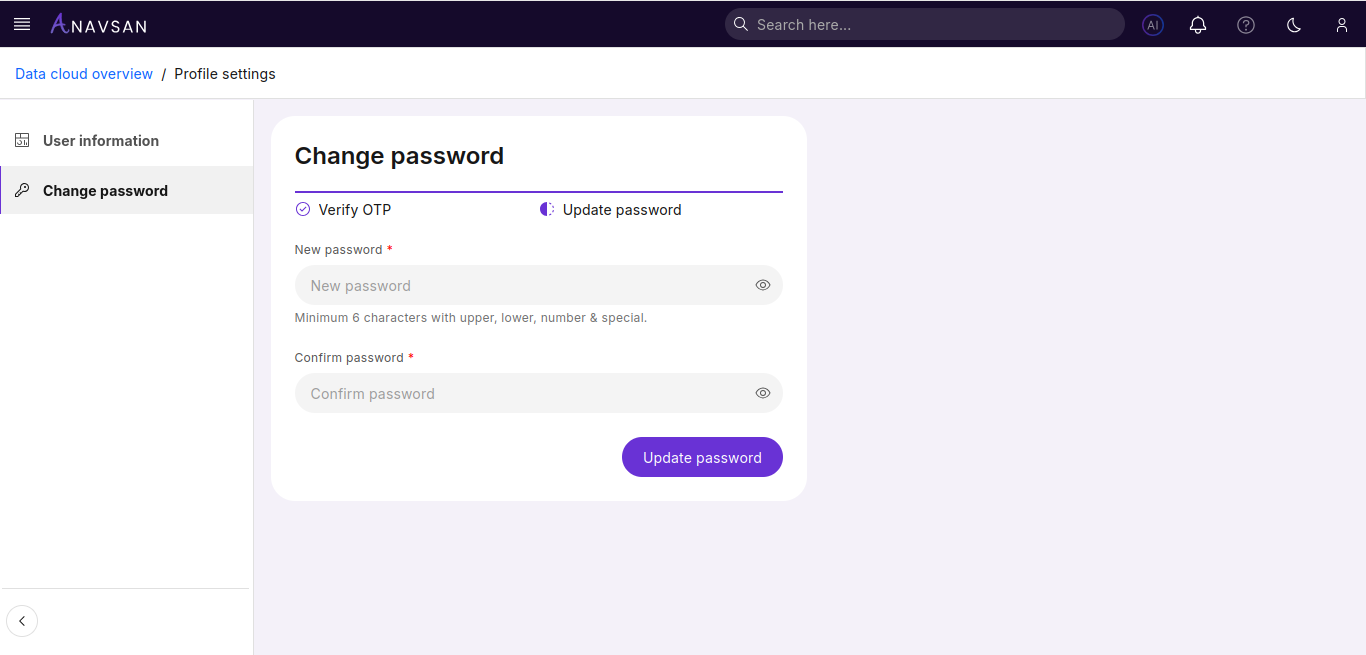
After OTP verification, you can set your new password:
- Enter your New password
- Confirm new password by entering it again
- Click Update password to update your password
- Once updated, you can sign in using your newly set password