Authentication
Create and manage your Anavsan account to begin optimizing Snowflake costs for your organization. This guide walks you through creating a user account, signing in, and recovering your password.
Sign Up
Manual Signup
As a FinOps engineer, you can create your account and set up your organization in the Anavsan portal.
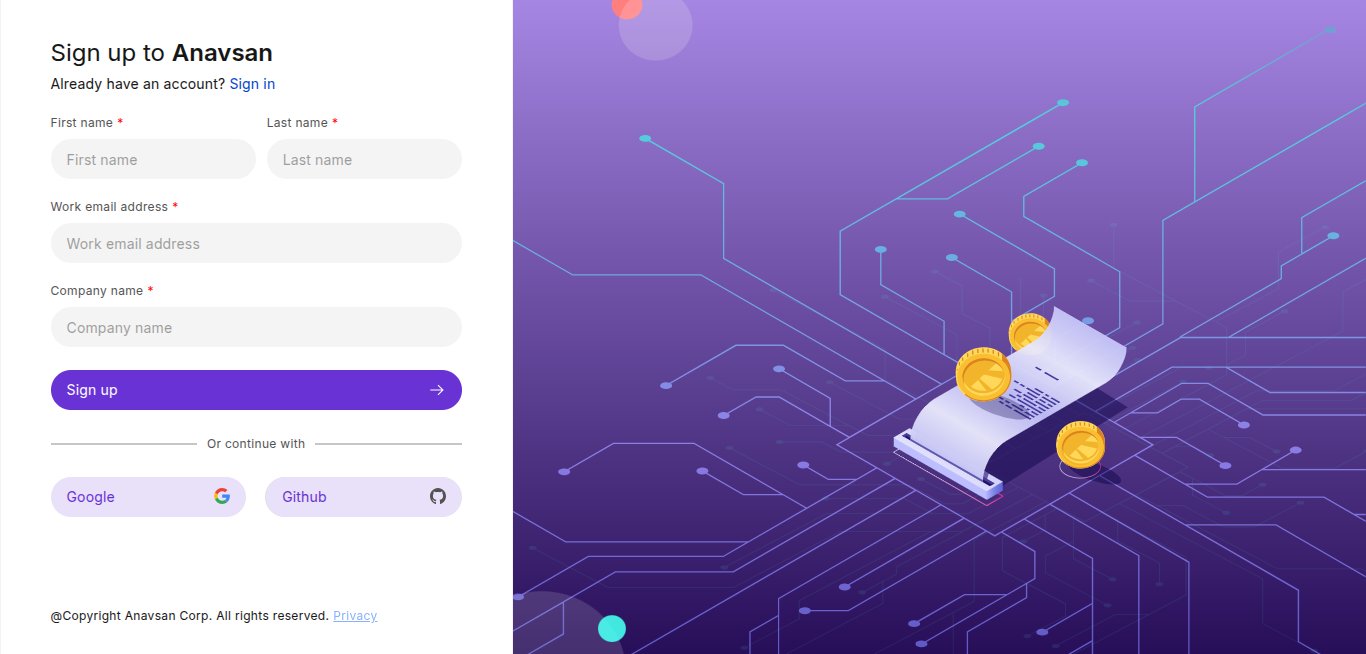
Steps
-
Fill in the required information:
- First name
- Last name
- Work email address
- Company name
-
Click Sign up
-
Check your email inbox for the verification email and follow the instructions.
After Signup
Once you submit the signup form, you will receive a password setup email.
Steps to Complete Account Setup
- Open the Set Password email sent to your inbox
- Click the Set Password button
- Create and confirm your new password
- Return to the login page
- Sign in using your email and new password
Tip: If you don't receive the email within a few minutes, check your Spam or Junk folder.
Google & GitHub Signup (Optional)
FinOps can also sign up using Google or GitHub for fast and secure authentication.
Steps
- Click Google or GitHub on the signup page
- Sign in using your selected provider
- After successful authentication, you will be redirected back to Anavsan
- If the email used for social login does not belong to an organization domain (for example,
example@gmail.cominstead ofexample@anavsan.com), a pop-up will appear immediately after login - Enter your Organization Name in the pop-up
- Click Save to save the organization
When the Popup Appears
Anavsan automatically checks the domain of the email returned from Google or GitHub.
| Email Example | Organization Domain Detected? | Popup Shown? |
|---|---|---|
john@anavsan.com | Yes | No |
test@gmail.com | No | Yes |
Already Have an Account?
Click Sign in on the signup page to go to the login screen.
Need Help?
Contact Anavsan support if:
- You are unable to complete the signup
- You are not receiving verification emails
- You face issues with Google/GitHub authentication
Sign In
Sign in to your Anavsan account to access query optimization, cost analysis, and performance monitoring features.
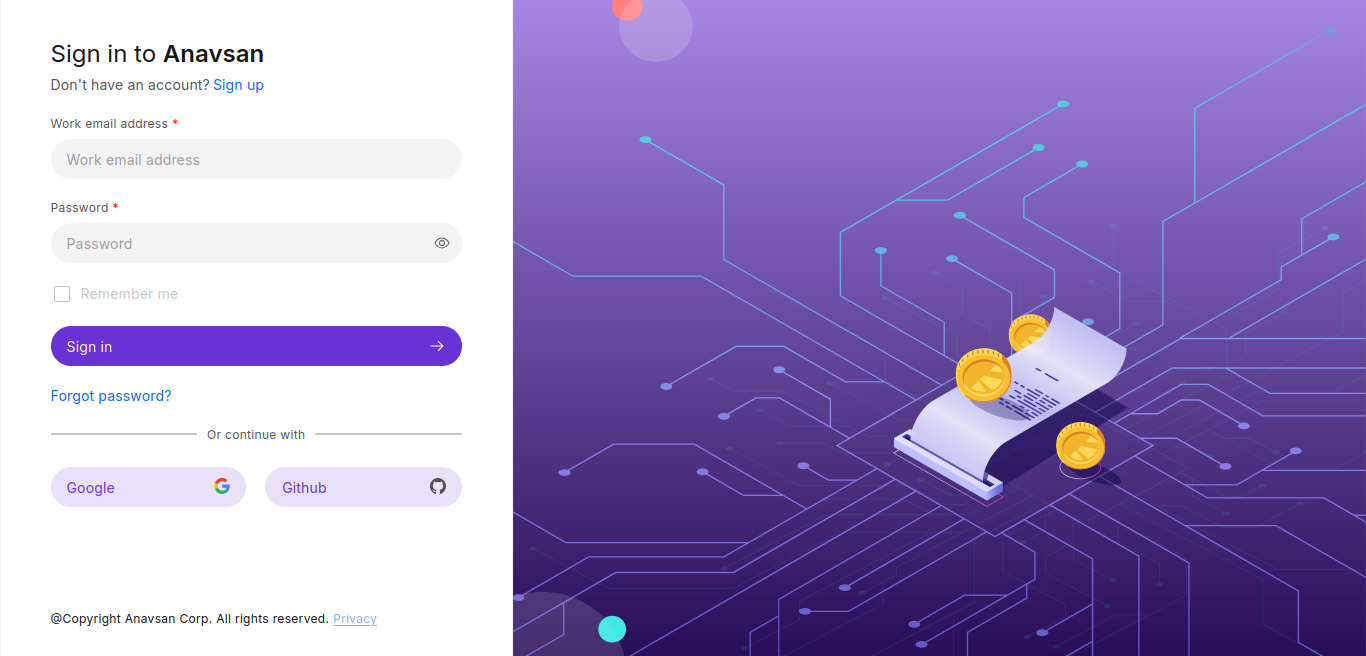
Sign In with Email and Password
Enter your registered email and password to log in.
Steps
- Enter your Work email address
- Enter your Password
- Click Sign in to continue
Forgot Password
Click Forgot password? to reset your password. You'll receive an email with reset instructions.
Sign In Using Google or Github
You can sign in quickly without entering a password using external authentication.
Google & GitHub Signin Flow
- Click Google or GitHub on the signup page
- You will be redirected to the respective provider's authentication page
- Select the account you want to use (or log in if not already authenticated)
- After successful authentication, you will automatically be redirected back to the Anavsan portal
- If the email used for social login does not belong to an organization domain (for example,
example@gmail.cominstead ofexample@anavsan.com), a pop-up will appear immediately after login - Enter your Organization Name in the pop-up
- Click Save to save the organization
When the Popup Appears
Anavsan automatically checks the domain of the email returned from Google or GitHub.
| Email Example | Organization Domain Detected? | Popup Shown? |
|---|---|---|
john@anavsan.com | Yes | No |
test@gmail.com | No | Yes |
After Sign In
After successfully signing in, you will be redirected to your last accessed page or the overview page.
Don't Have an Account?
Click Sign up on the Sign In page to create a new user.
Forgot Password
This section describes the steps involved in resetting your password using the Forgot Password feature. The flow includes requesting a reset, verifying a one-time code (OTP), and creating a new password.
Reset Password Request
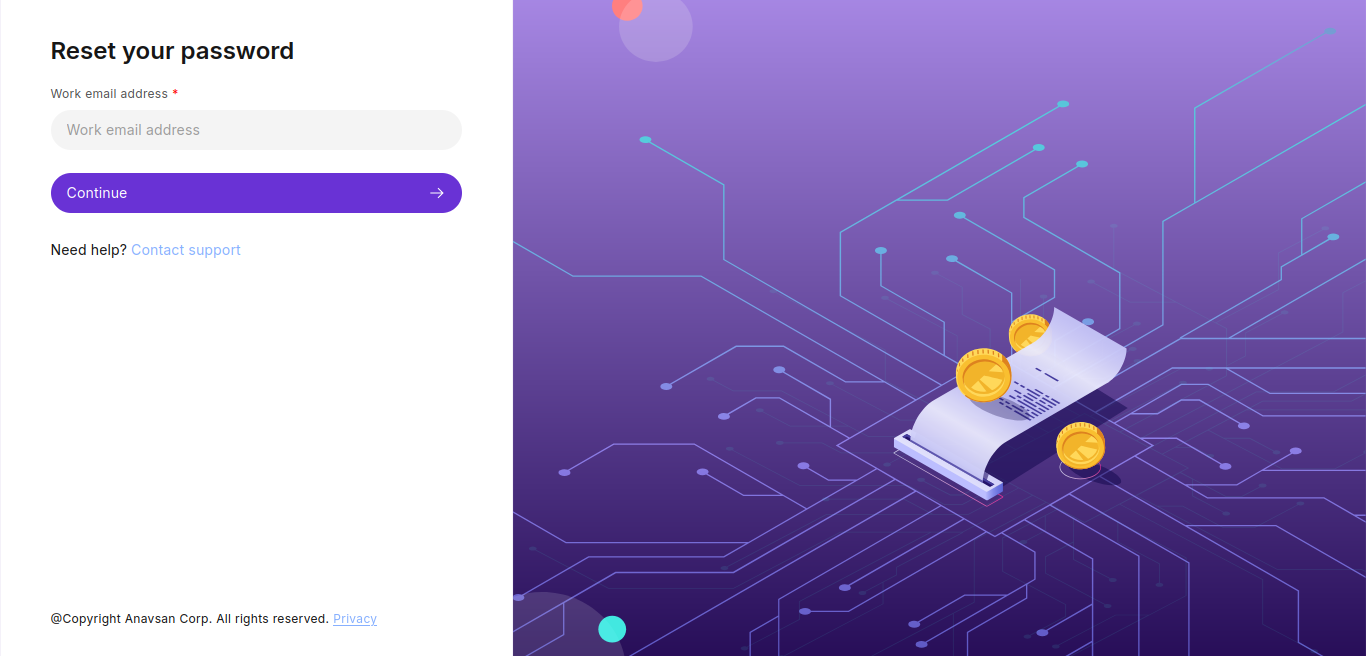
Begin by entering your work email address on the Reset Password page. If the email is associated with an account, a verification code is sent to your inbox.
Steps
- Enter the work email address.
- Click Continue.
- The system sends a 6-digit temporary code to the email address.
- Use Contact support if assistance is needed.
Email Verification (OTP)
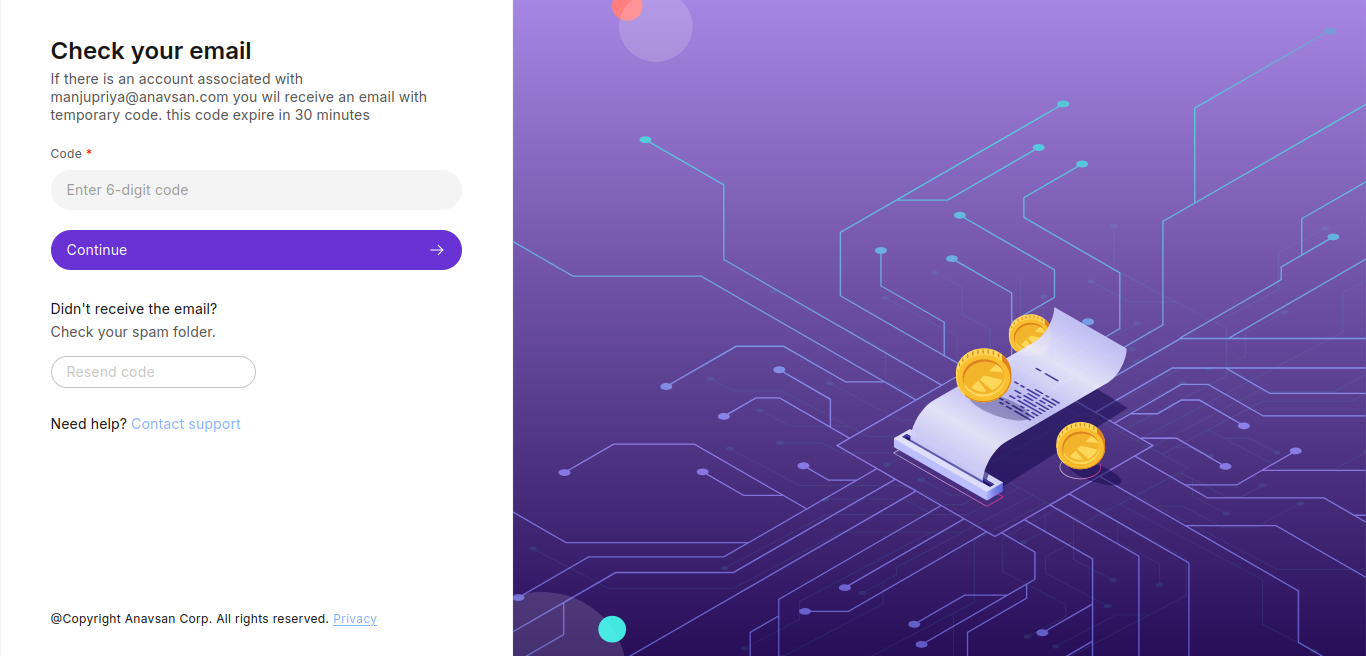
After requesting the password reset, you must verify your identity by entering the 6-digit code received by email. Codes expire after 30 minutes.
Steps
- Open the email inbox for the associated account.
- Locate the message containing the 6-digit temporary code.
- If not found, check the spam folder.
- Enter the code in the Code field.
- Click Continue.
- If the code was not received, click Resend code to request a new one.
- Contact support using the link provided as needed.
Create New Password
Once the verification code is accepted, you are allowed to create a new password.
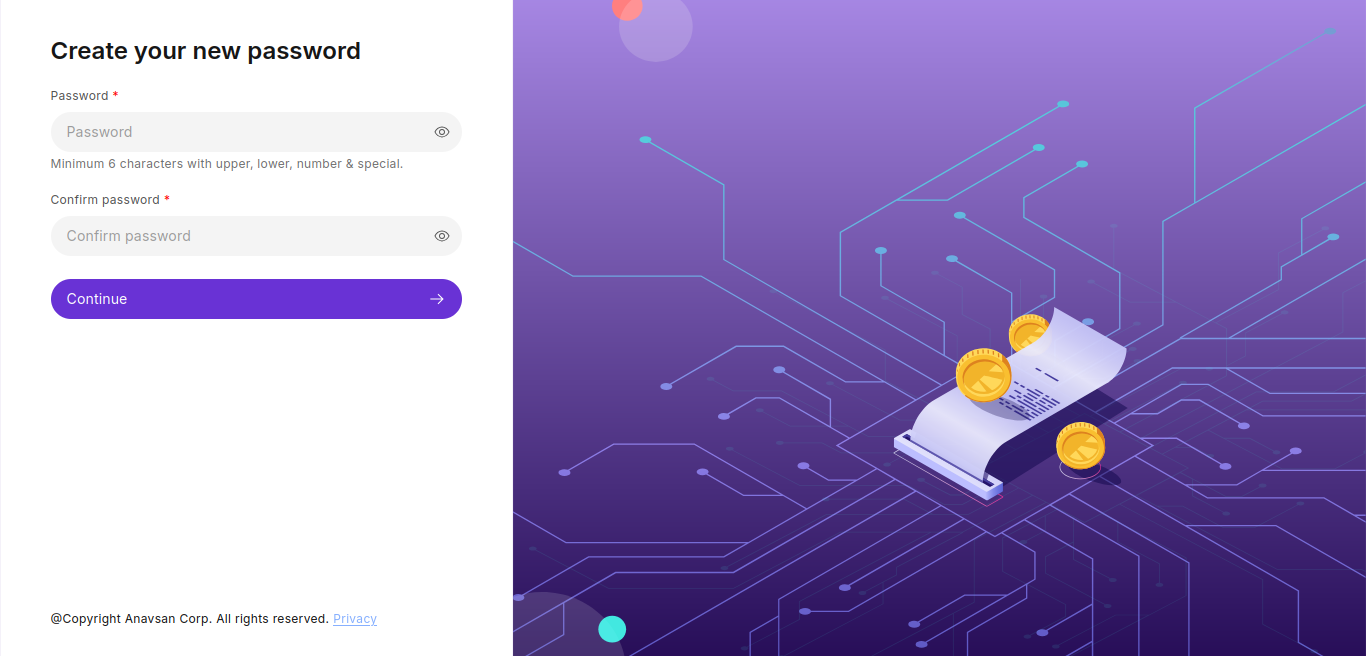
Password Requirements
A valid password must include:
- Minimum 6 characters
- At least one uppercase letter
- At least one lowercase letter
- At least one number
- At least one special character
Steps
- Enter the new password in the Password field.
- Re-enter the same password in the Confirm password field.
- Click Continue to finalize the password reset.
Flow Summary
- Reset request: Enter your email.
- Email verification: Enter the 6-digit code.
- Password creation: Set a new password.
The password reset is now complete.