Query Vault
The Query Vault is your centralized location for managing saved queries and their versions. It provides an organized view of all queries saved from Query Analyzer, Query Optimizer, and Query Simulator, making it easy to track query evolution and manage different versions.
Why Query Vault?
Version Control for SQL Queries
Query Vault provides Git-like version control specifically designed for your Snowflake queries. Unlike generic file storage, it understands query context, tracks optimization history, and maintains relationships between analyzed, optimized, and simulated versions—giving you a complete audit trail of your query evolution.
Workspace Highlights
- Track complete query evolution with automatic version numbering
- Compare versions side-by-side to understand optimization impact
- Filter by query type (Analyzed, Optimized, Simulated) for quick access
- One-click access to re-analyze, re-optimize, or re-simulate any version
- Date-based filtering to find queries from specific time periods
- Integrated with all Anavsan optimization tools for seamless workflow
Getting Started with Query Vault
To populate your Query Vault, save queries from any of these tools:
- Query Analyzer - Analyze query performance and save the query with analysis results
- Query Optimizer - Generate optimized versions of your queries and save them
- Query Simulator - Test queries with different warehouse configurations and save results
Once you save your first query, it will appear in the Query Vault table with version tracking enabled.
Query Vault Main View
When you navigate to Query Vault, you see a list of all saved query files with comprehensive filtering and search capabilities.
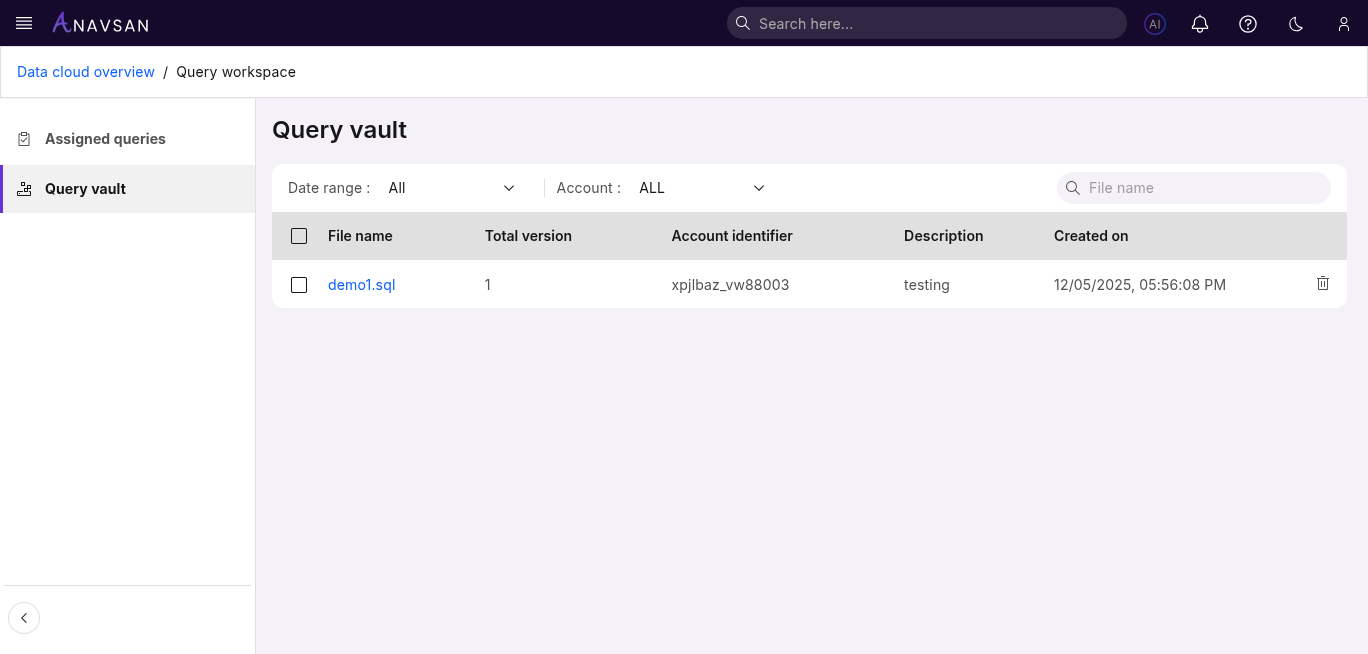
Toolbar Features
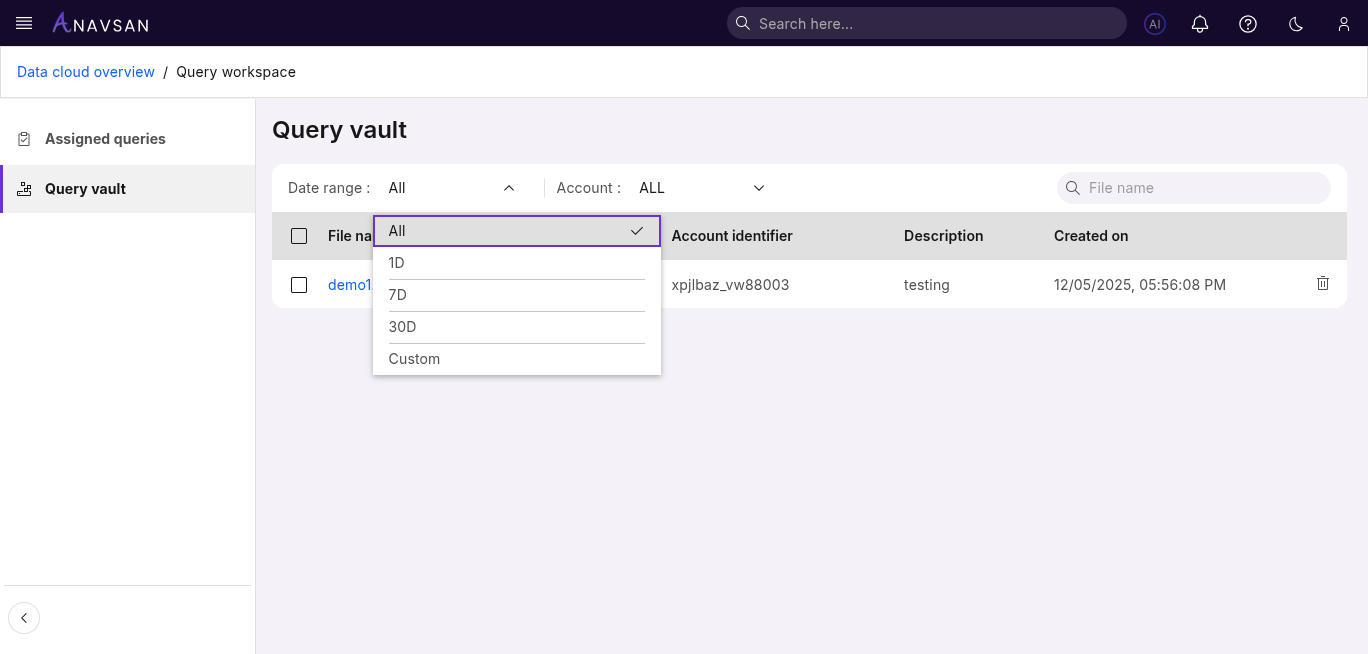
Date Range Filter
Filter queries by creation date:
- All - Shows all queries regardless of date (default)
- 1D - Shows queries created in the past day
- 7D - Shows queries created in the past 7 days
- 30D - Shows queries created in the past 30 days
- Custom - Select specific start and end dates for filtering
Workspace Table Columns
| Column | Description | Use Case |
|---|---|---|
| File name | Clickable link to view version history (e.g., analyze-1.sql, analyze-2.sql) | Access complete version history and track query evolution over time |
| Total version | Number showing how many versions exist for this query | Identify heavily modified queries that may need consolidation or review |
| Description | Optional text description of the query purpose | Quickly understand query intent without opening the file |
| Created on | Timestamp showing when the query was first saved | Sort by date to find recent work or track when optimization efforts began |
File Versions View
Click on any file name to see all versions of that query. The versions page shows the complete history with statistics and actions.
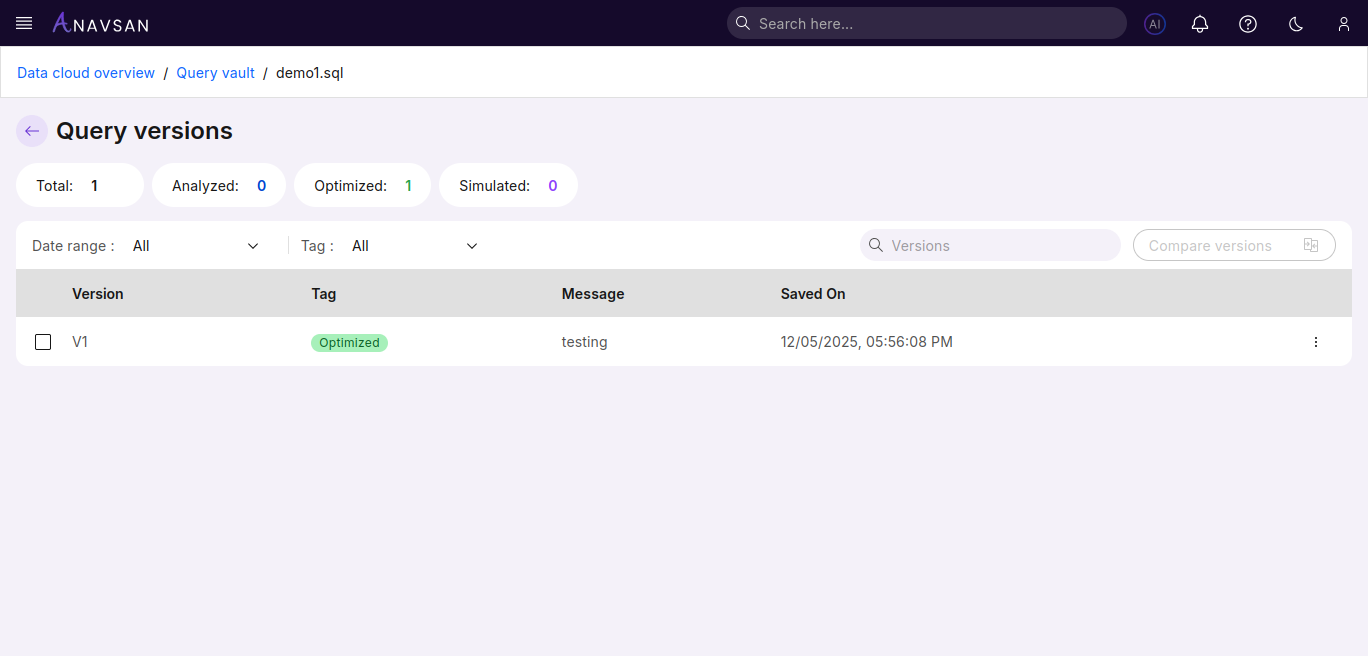
Version Statistics
The top section provides a quick summary:
- Total: Count of all saved versions
- Analyzed: Number of versions analyzed in Query Analyzer
- Optimized: Number of versions optimized in Query Optimizer
- Simulated: Number of versions tested in Query Simulator
Version Filters
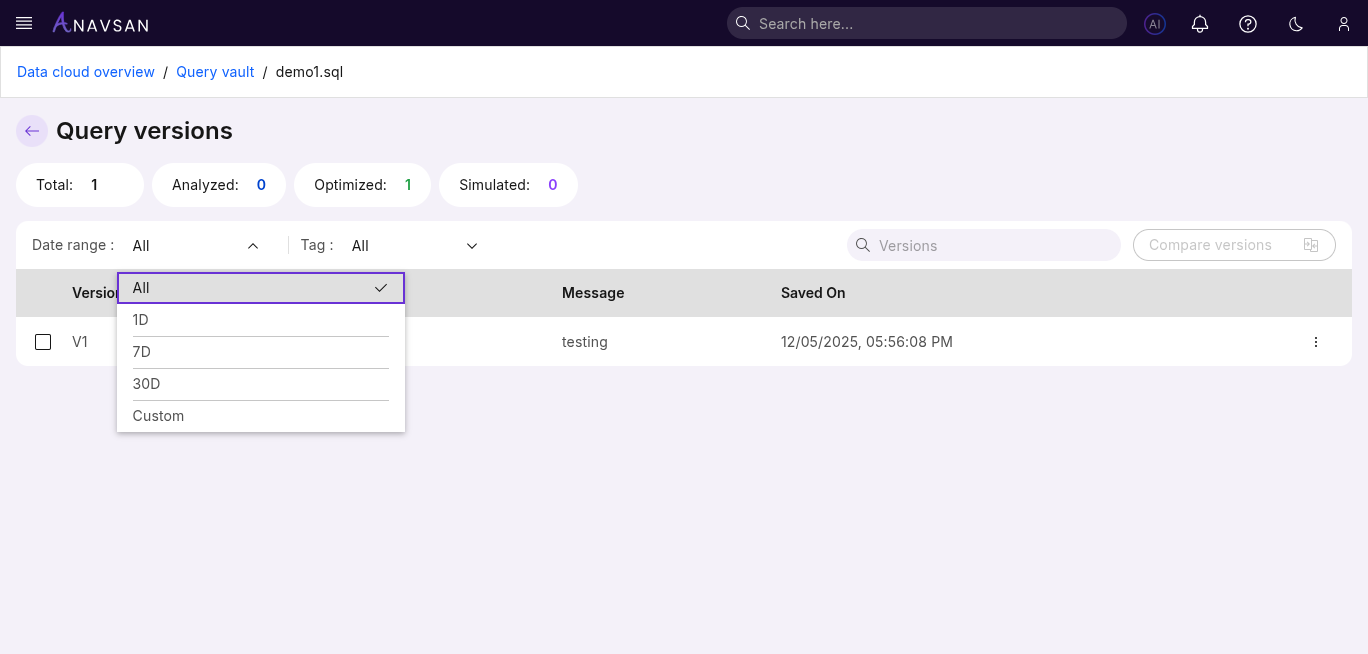
Date Range Filter
Filter versions by save date:
- All - Shows all versions regardless of date (default)
- 1D - Shows versions saved in the past day
- 7D - Shows versions saved in the past 7 days
- 30D - Shows versions saved in the past 30 days
- Custom - Select specific start and end dates for filtering
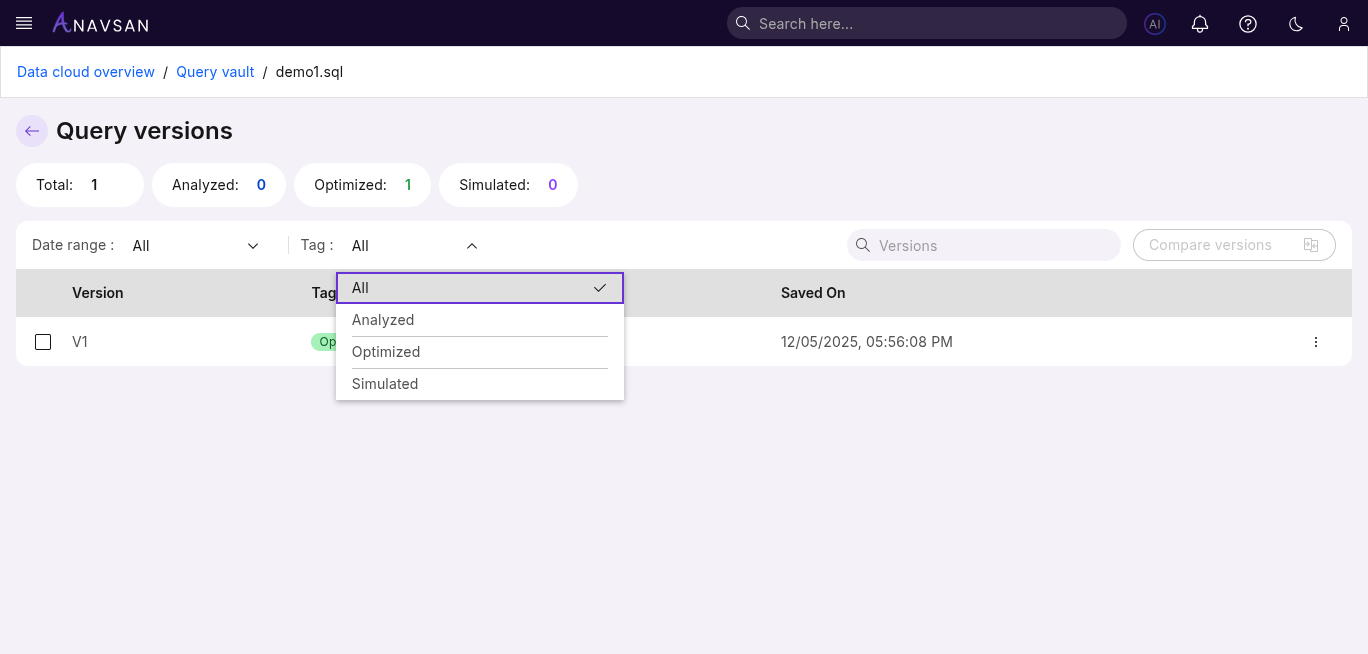
Tag Filter
Filter by version type:
- All - Shows all versions regardless of tag (default)
- Analyzed - Shows only versions analyzed in Query Analyzer
- Optimized - Shows only versions optimized in Query Optimizer
- Simulated - Shows only versions tested in Query Simulator
Compare Versions Button
- Disabled by default
- Enables when 2 or more versions are selected
- Opens side-by-side comparison view
Versions Table Column
| Column | Description | Use Case |
|---|---|---|
| Version | Sequential identifier (V1, V2, V3, etc.) | Track chronological order and reference specific versions in discussions |
| Tag | Color-coded badge showing type (Analyzed, Optimized, Simulated) | Filter and identify which optimization tool was used for this version |
| Message | User-defined description of this version | Understand what changes were made and why without viewing the query |
| Saved On | Full timestamp of when version was created | Track when optimizations were applied and compare with performance metrics |
| Actions | Menu with options to preview, analyze, optimize, or simulate | Quickly re-run any optimization tool on a specific version |
Sorting Versions
The versions table supports sorting to help you organize and find versions quickly. You can sort by the following columns:
Sortable Columns
-
Version - Sort by version number (V1, V2, V3, etc.)
-
Tag - Sort by version type alphabetically
-
Saved On - Sort by timestamp
Version Actions
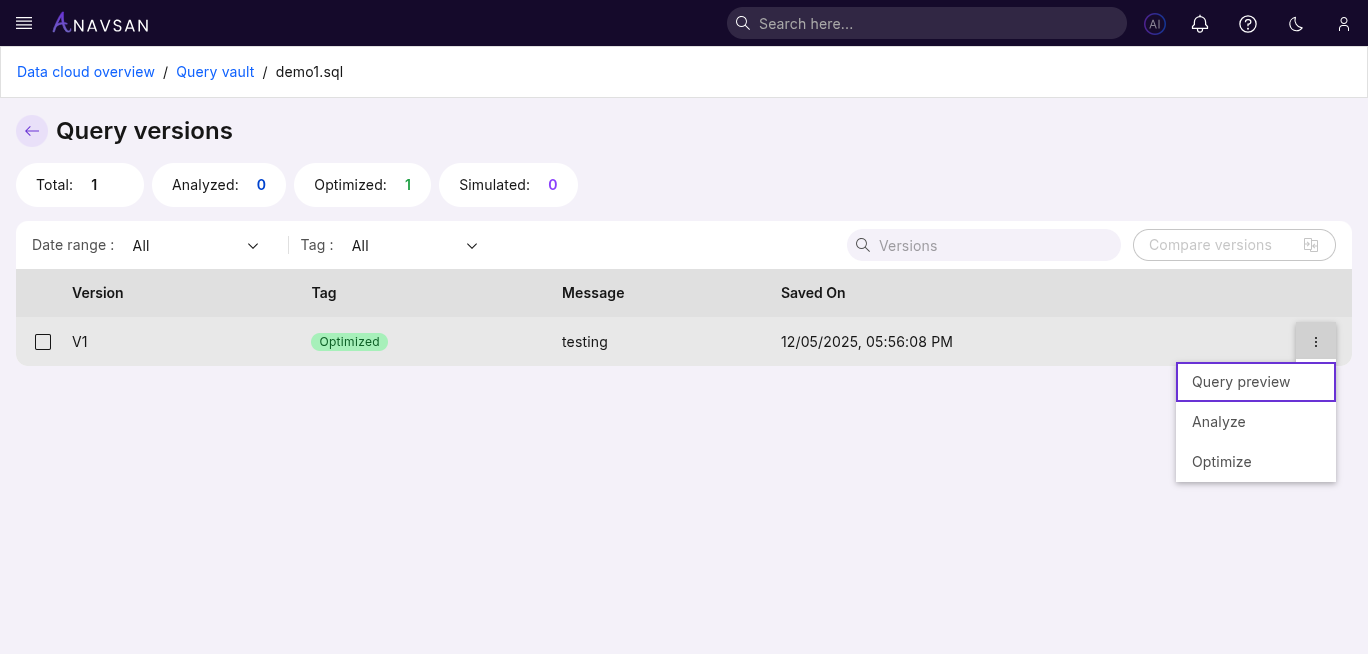
Each version has an Actions menu providing quick access to analysis and optimization tools.
Available Actions
- Query preview - Opens pop-up showing the complete SQL query with copy option
- Analyze - Opens Query Analyzer with this query pre-loaded for performance analysis
- Optimize - Loads query in Query Optimizer for AI-powered optimization suggestions
- Simulate - Opens Query Simulator to test query with different warehouse size and Data size
Version Comparison
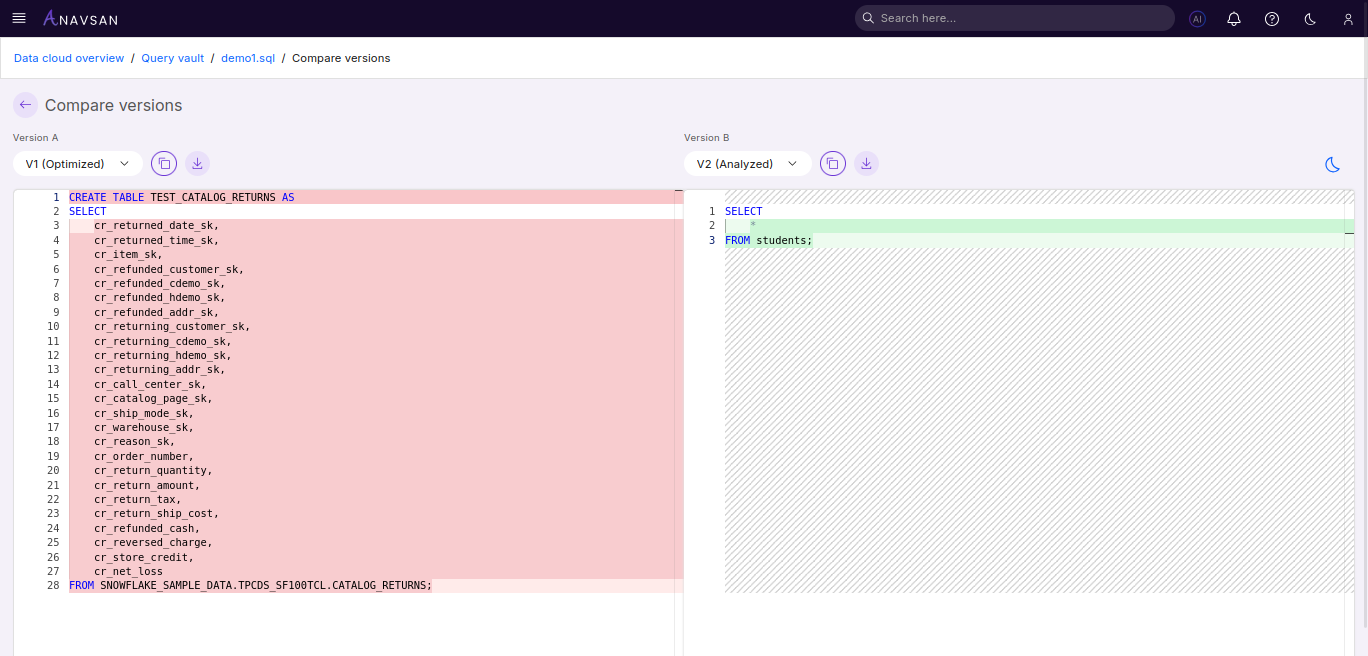
Compare multiple query versions side-by-side to analyze differences and track query evolution. This feature helps you understand changes between versions and evaluate optimization improvements.
How to Compare Versions
Step 1: Select Versions
- Navigate to the versions list for any query file
- Select 2 versions using the checkboxes in each row
- The "Compare versions" button becomes enabled once selections are made
Step 2: Open Comparison View
- Click the "Compare versions" button
- Navigates to the comparison page with selected versions
- Default comparison shows first two selected versions
Comparison Page Features
Version Selectors
- Version A Dropdown - Select which version to display on the left panel
- Version B Dropdown - Select which version to display on the right panel
- Easily switch between different versions for comparison
Action Buttons
For each version panel, the following actions are available:
- Copy Button - Copy the complete SQL query to clipboard for sharing or external use
- Download Button - Download the query as a SQL file for local storage or version control
Display Controls
- Dark Mode Toggle - Switch between light and dark editor themes for comfortable viewing
Side-by-Side Editors
- Two SQL editors displayed side-by-side with synchronized scrolling
- Syntax highlighting and line numbers for easy reference
- Read-only view to prevent accidental modifications