Integrations
The Integrations page allows you to connect external services to Anavsan.
GitHub Integration
The GitHub Integration enables users to securely connect their GitHub account to Anavsan, allowing access to repositories and facilitating streamlined collaboration through Git-based workflows. Once connected, users can view available repositories, browse repository contents, and manage the integration directly from the Anavsan interface.
Connecting Your GitHub Account
The integration begins with a secure OAuth authorization flow. Users initiate the connection from the Integrations page, where Anavsan redirects them to GitHub to approve access. After successful authorization, GitHub returns the user to Anavsan and the integration becomes active.
This connection allows Anavsan to read the user’s repositories, enabling further workflow actions such as browsing repository structures or selecting a repository for syncing.
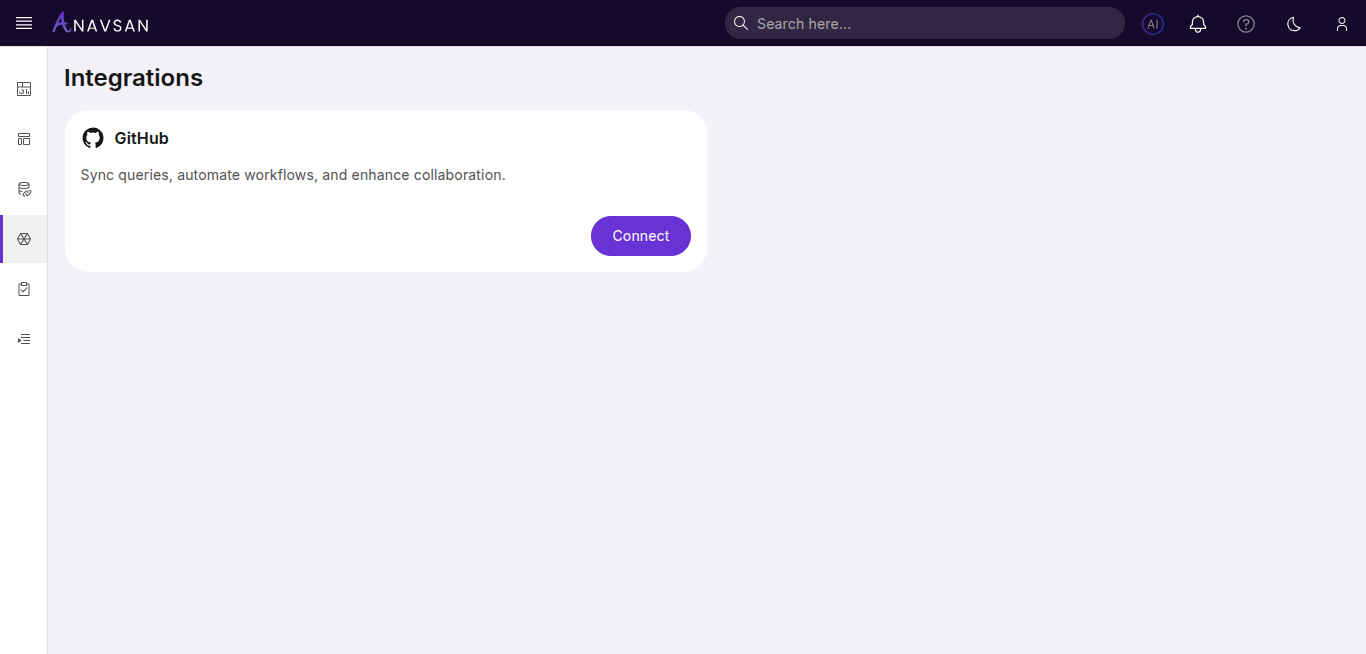
Click the Connect button to start the GitHub integration process. You'll be redirected to GitHub to authorize Anavsan.
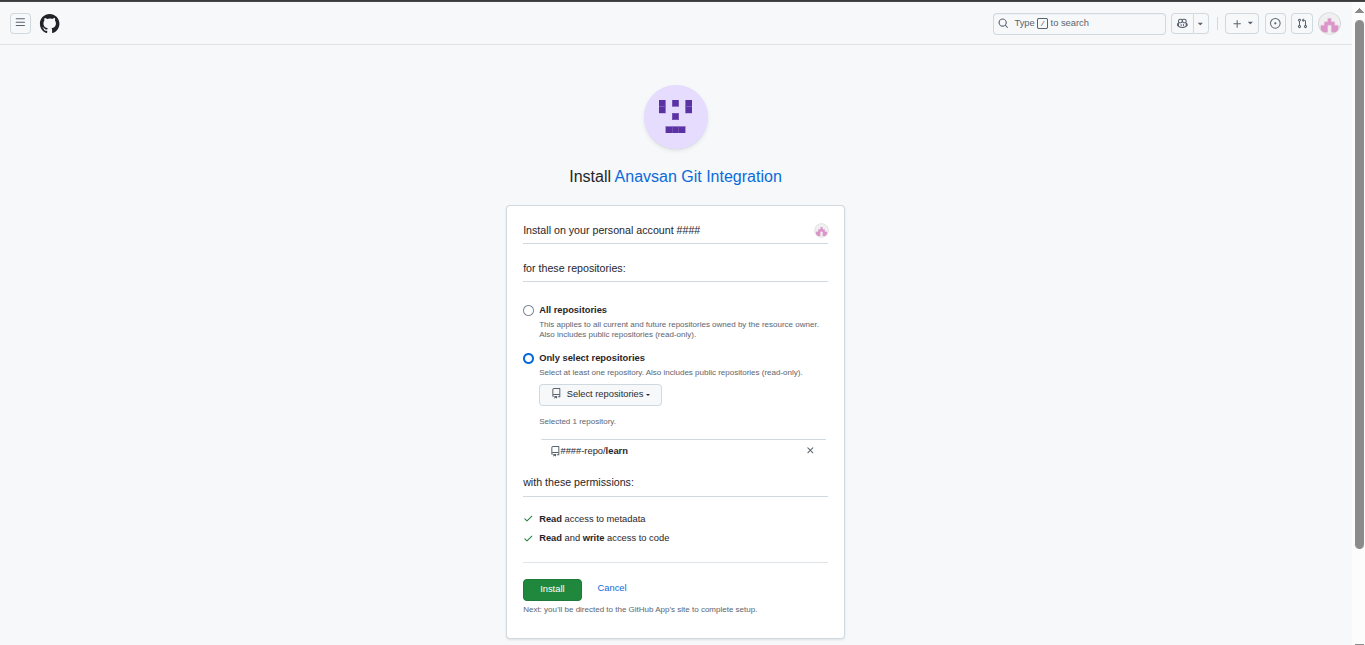
After authorization, you'll be redirected back to Anavsan.
Accessible Repositories
After a successful connection, the Integrations page displays the repositories that the user has access to through GitHub.
The list includes both personal and organization repositories associated with the connected account.
Users can refresh this list when new repositories are added or when repository access changes on GitHub. Search and filtering options make it easy to locate specific repositories when working with large environments.
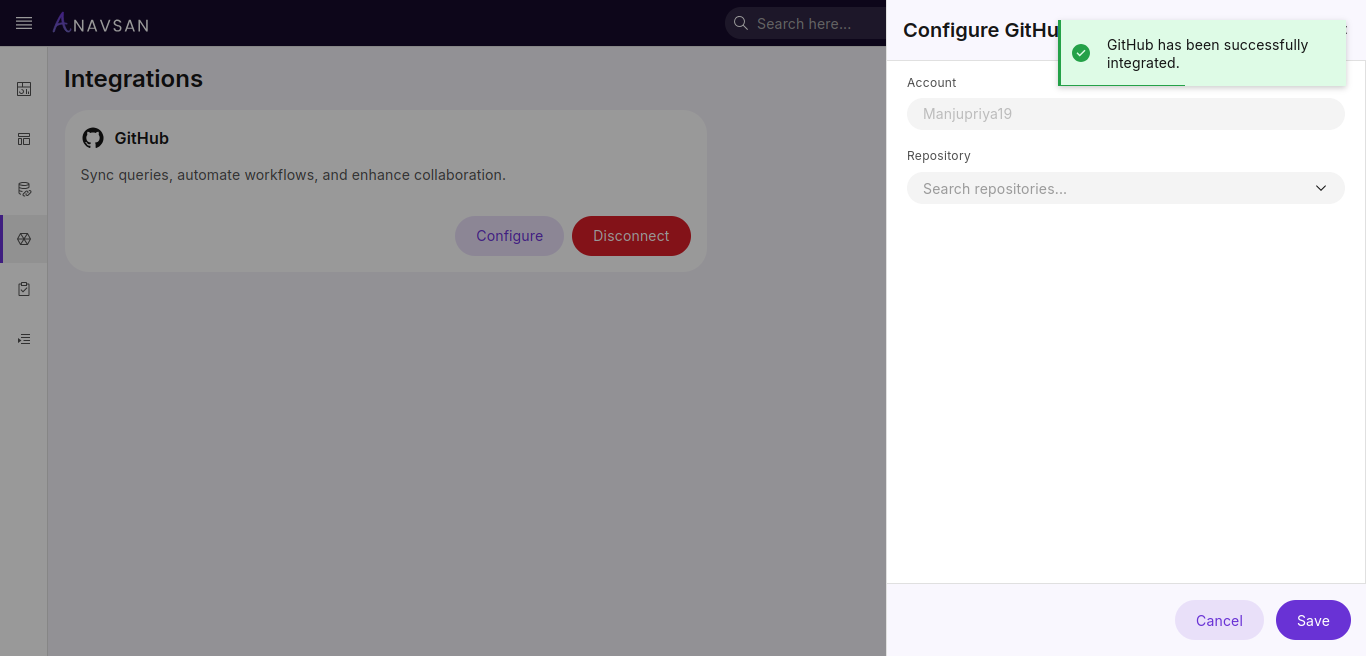
Repository Content Browsing
Selecting a repository opens a structured view of its contents.
The repository browser allows users to navigate through files and folders, preview supported file types.
This helps users verify folder locations, review query or configuration files stored in GitHub, and ensure accuracy before selecting a repository path for syncing or reference within Anavsan.
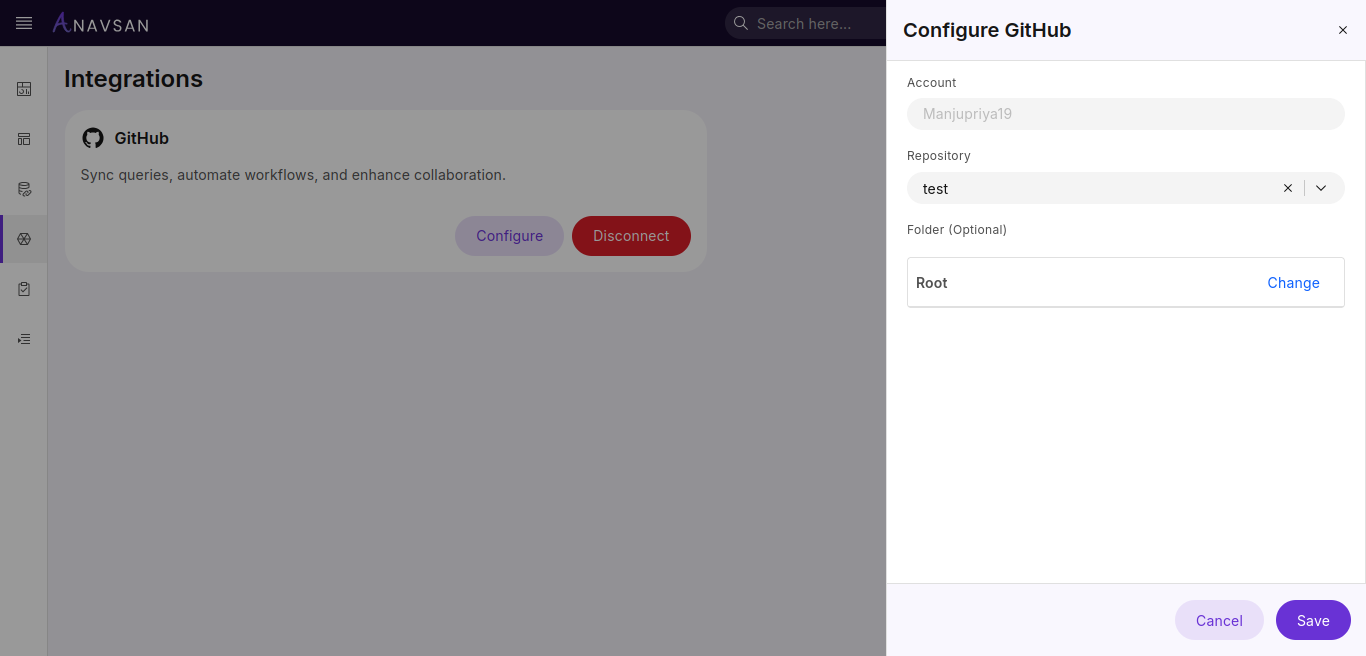
Configuration Fields
| Field | Description | Use Case |
|---|---|---|
| Account | Your GitHub account name | Automatically populated and cannot be changed |
| Repository | Repository to integrate with Anavsan | Select from the dropdown to choose which repository will receive the pushed files |
| Folder | Folder within the repository | Optional. Defaults to Root. Click "Change" to select a specific folder where files will be pushed |
After selecting your repository and folder, click Save to complete the integration.
Managing Integration
Once the integration is configured, the GitHub card displays two management buttons:
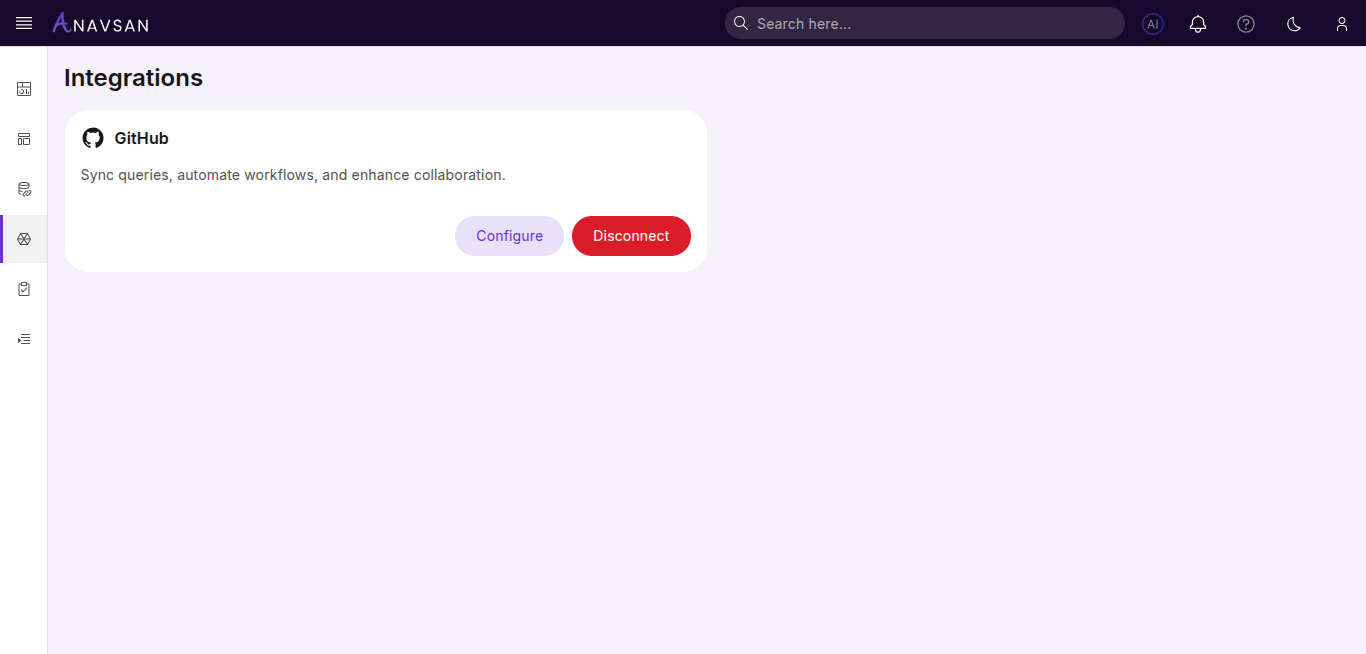
- Configure - Opens the configuration panel to change repository or folder settings
- Disconnect - Removes the GitHub integration from your account
Disconnecting GitHub
Users can remove the integration at any time.
Disconnecting revokes Anavsan’s access to GitHub and clears associated integration information from the platform.
If the GitHub App was installed at the organization level, users may need to remove it from GitHub’s organization settings to fully revoke access.
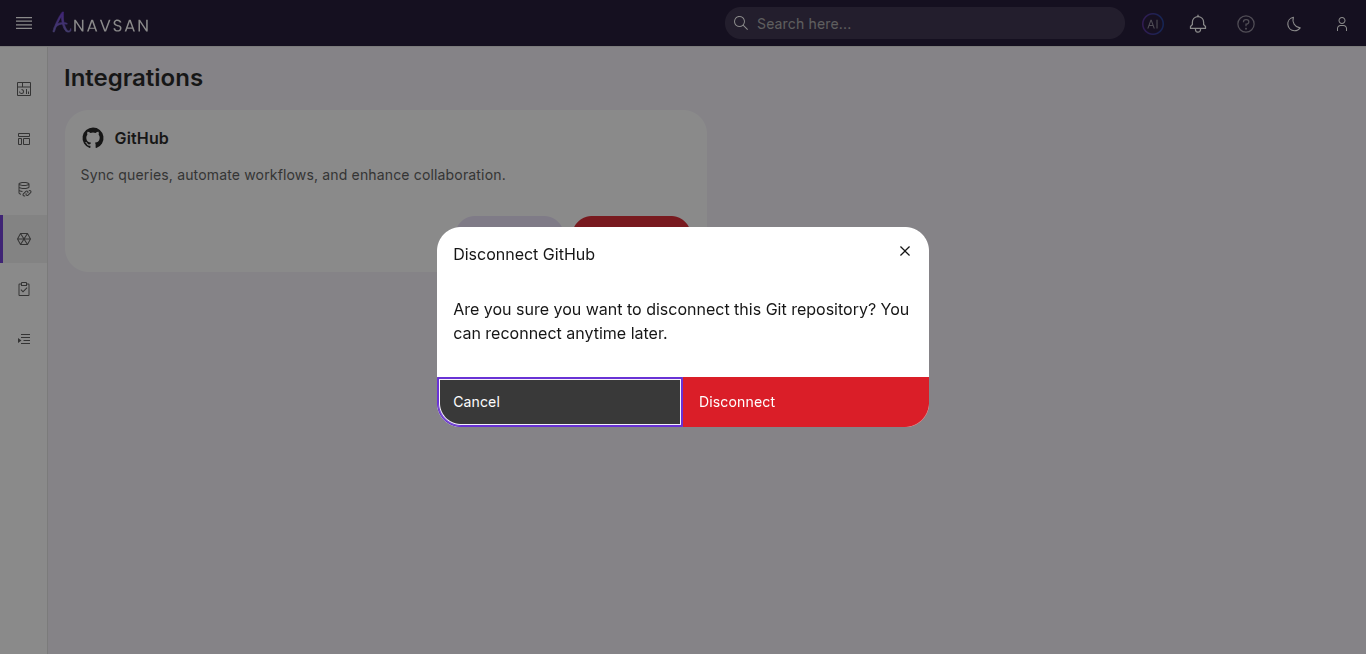
The pop-up asks you to confirm that you want to disconnect the Git repository. Click Cancel to abort or Disconnect to remove the integration. You can reconnect anytime later.
Troubleshooting
Authorization not completing: Retry the connection process and ensure browser pop-ups are allowed.
Missing repositories: Confirm GitHub App installation at the organization level and verify repository permissions.
Access errors: Reconnect the integration to refresh outdated or revoked permissions.
Incorrect file or folder visibility: Ensure the correct repository is selected when browsing content.
Summary
The GitHub Integration provides a seamless method for connecting GitHub workflows with Anavsan’s environment.
By enabling repository visibility, structured file browsing, and flexible management controls, the integration supports versioned configuration, collaborative development, and consistent operational governance within the platform.