Alerts
The Alerts page allows users to view and manage all the notifications in one centralized location. Clicking View all notifications in the topbar notification icon redirects you to this alerts list page, where you can filter, review, and track important system events.
Alerts List
When alerts exist, they appear in a structured list with all notification details.
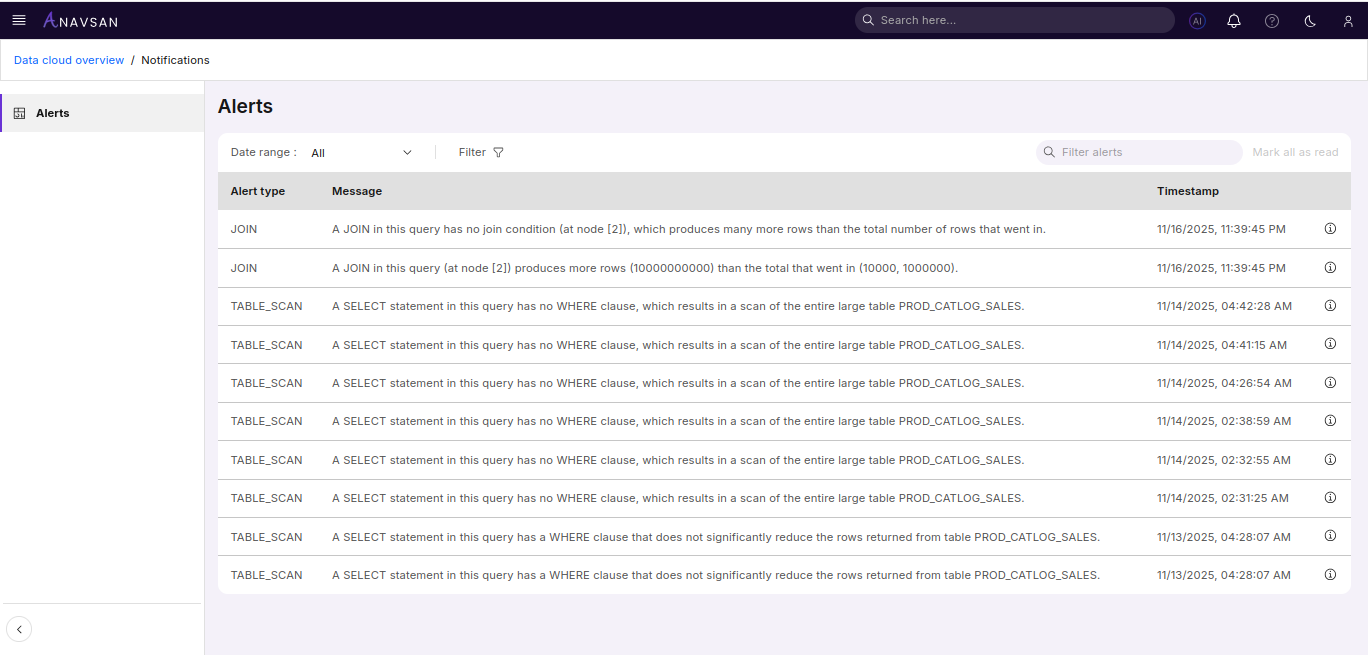
The alerts list displays all notifications with key information to help you quickly identify and respond to important events.
Accessing Alerts
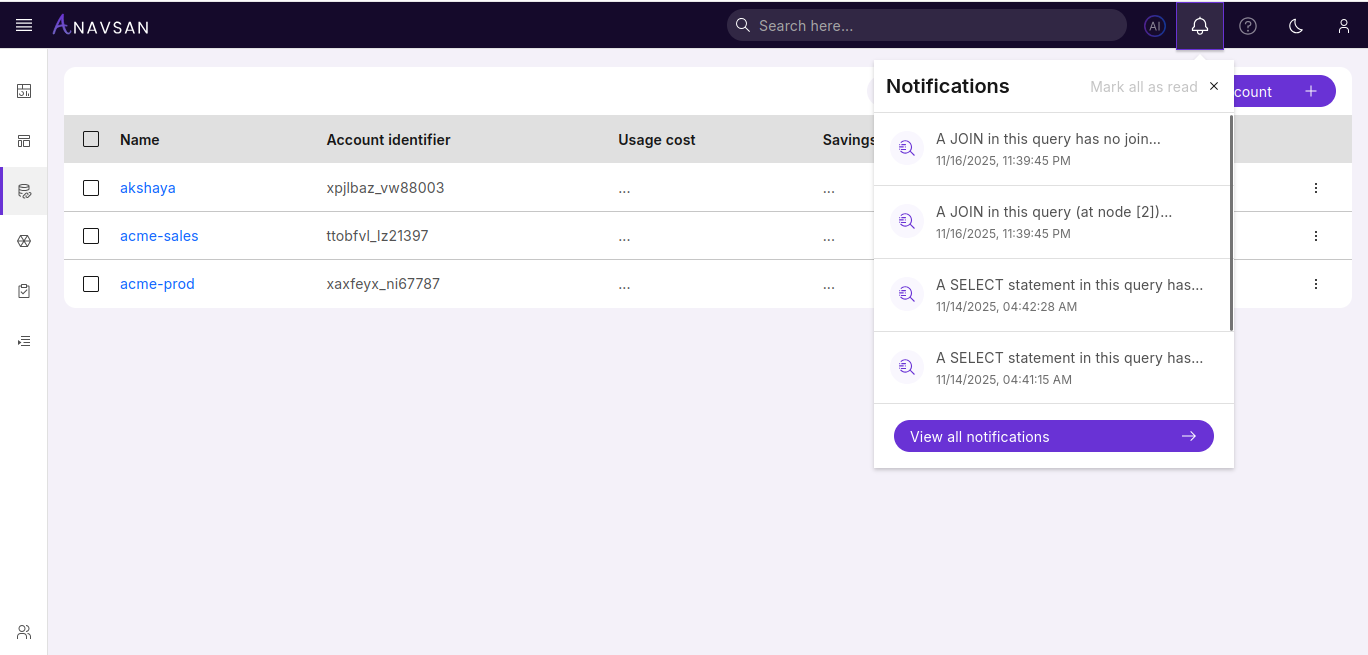
Click View all notifications from the topbar notification icon to be redirected to the alerts list page. This provides quick access to all your alerts from anywhere in the application.
Alert Details
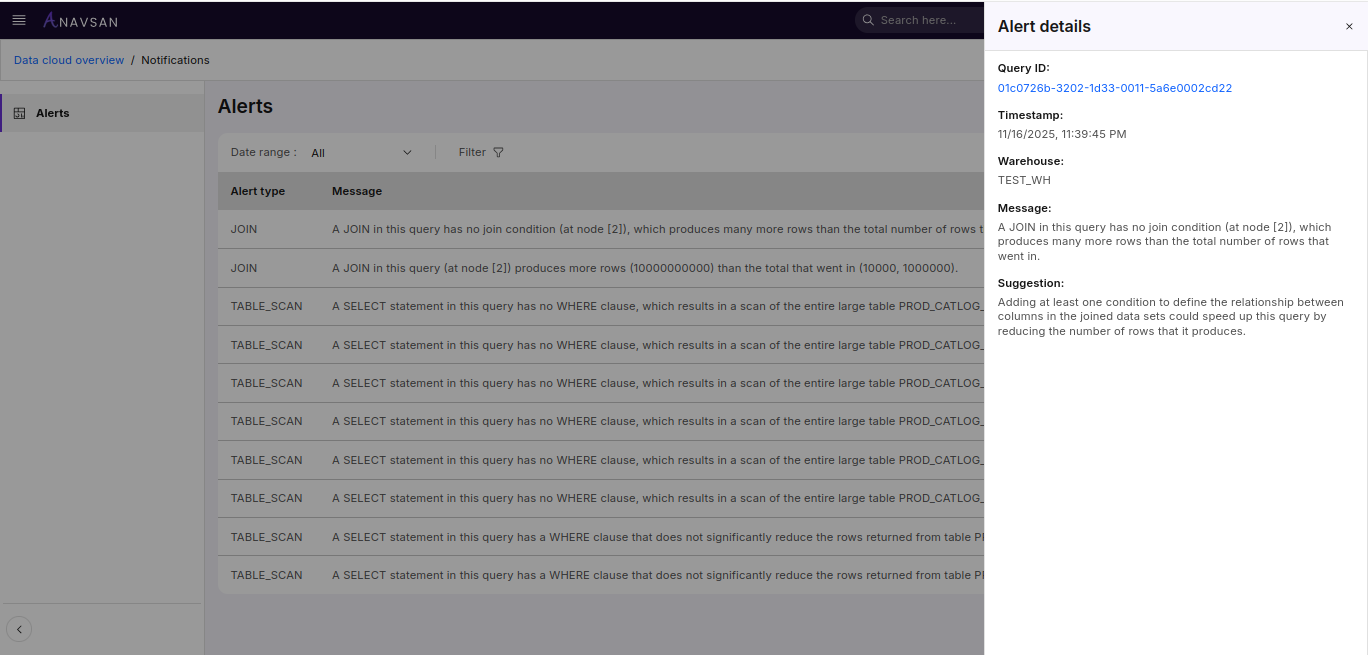
Click the info icon on any alert to open the alert details panel.
The alert details panel contains:
- Query ID — Click to navigate to the query details page
- Timestamp — Date and time when the alert was generated
- Warehouse — The warehouse where the query was executed
- Message — Description of the alert or event
- Suggestion — Recommended actions or guidance to address the alert
Filters
Filters help narrow the list to focus on relevant alerts.
Date Range Filter
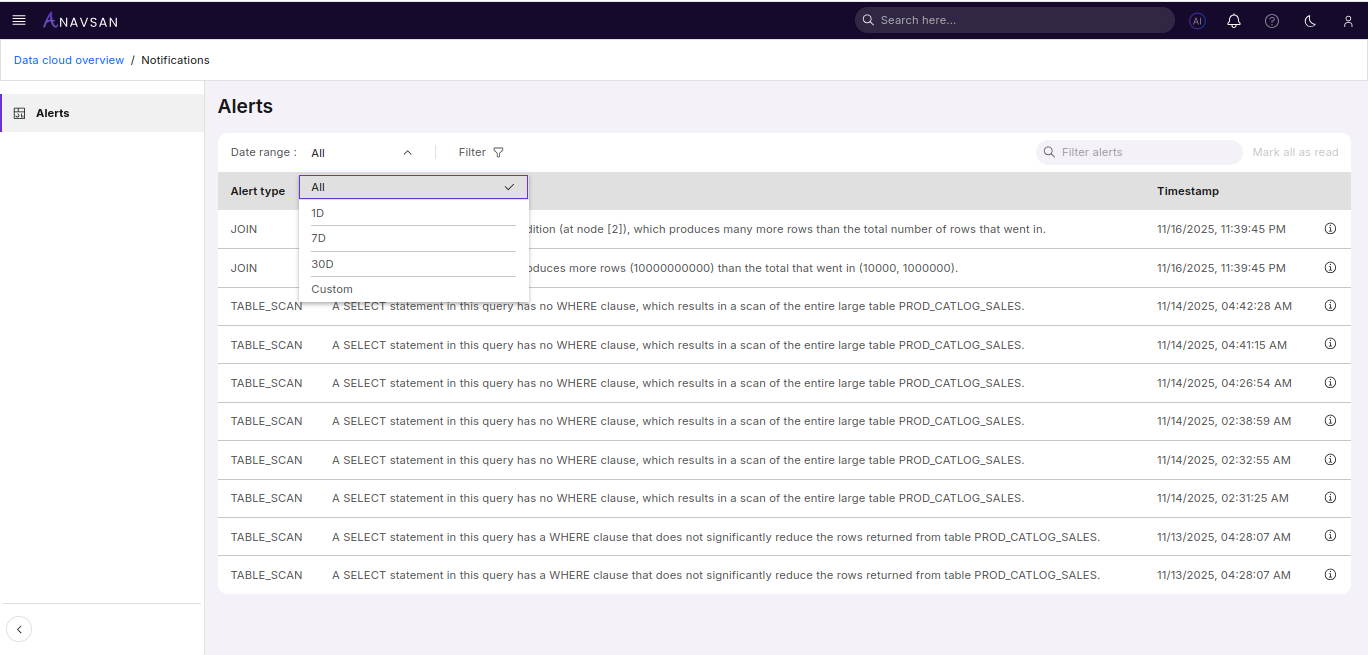
Choose from preset or custom date ranges:
- All — Shows all alerts
- 1D — Alerts from the last 24 hours
- 7D — Alerts from the past week
- 30D — Alerts from the past month
- Custom — Select a custom start and end date
Alert Type Filter
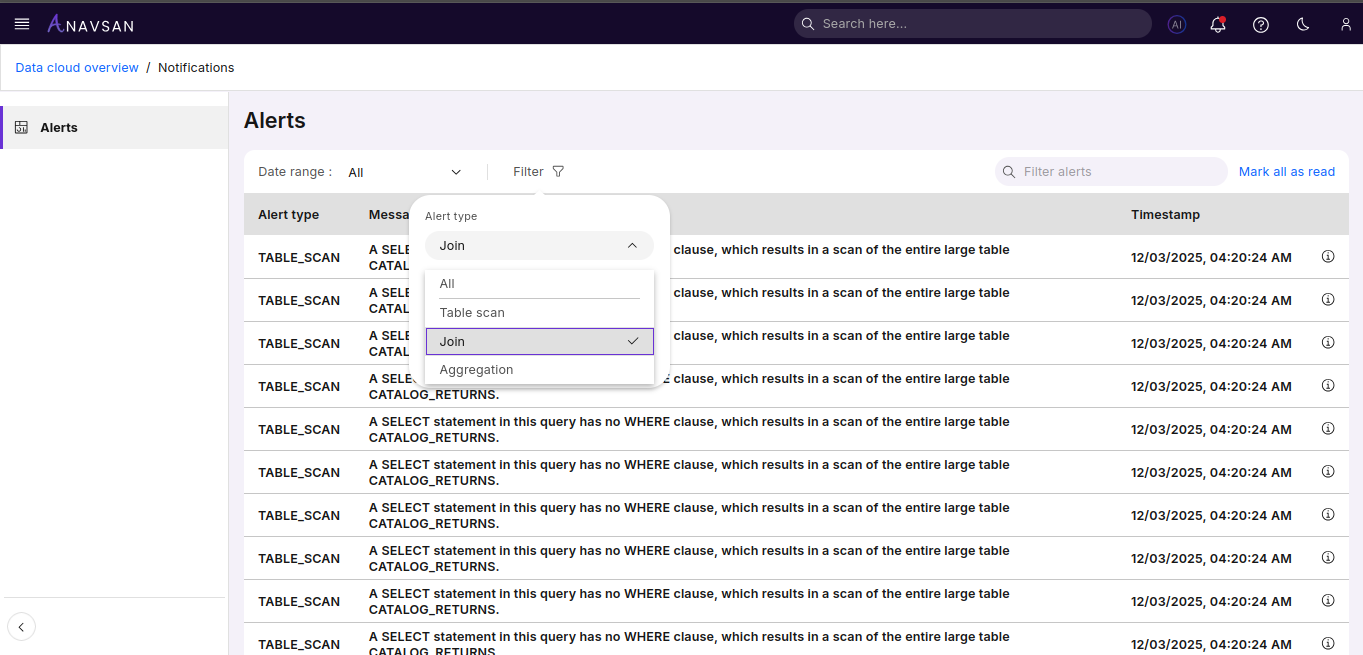
Filter alerts by their type to focus on specific categories of notifications. This helps you quickly find alerts related to particular system events or areas of concern.
Status Filter
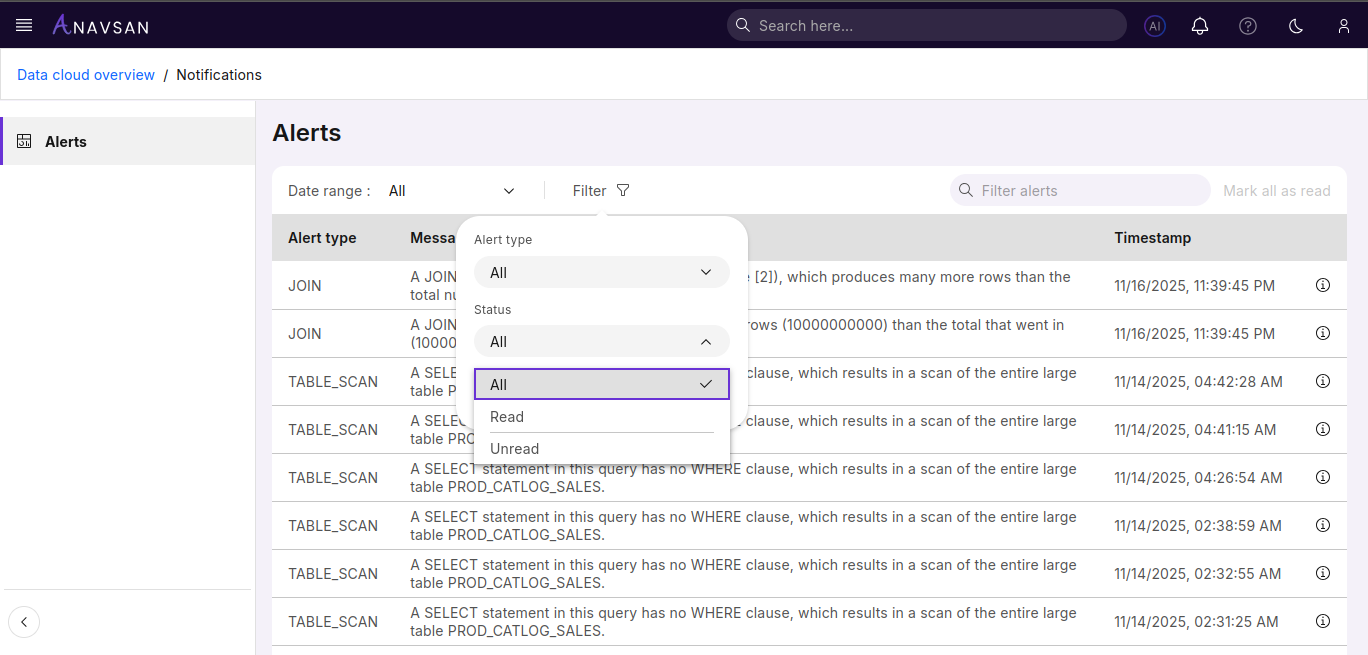
Filter alerts by their current status:
- All — All statuses
- Unread — New alerts you haven't reviewed yet
- Read — Previously viewed alerts
This helps you track which notifications require your attention.