Dashboard List
Anavsan allows users to create as many dashboards as they need.
Viewing Dashboards
When dashboards exist, they appear in a grid layout.
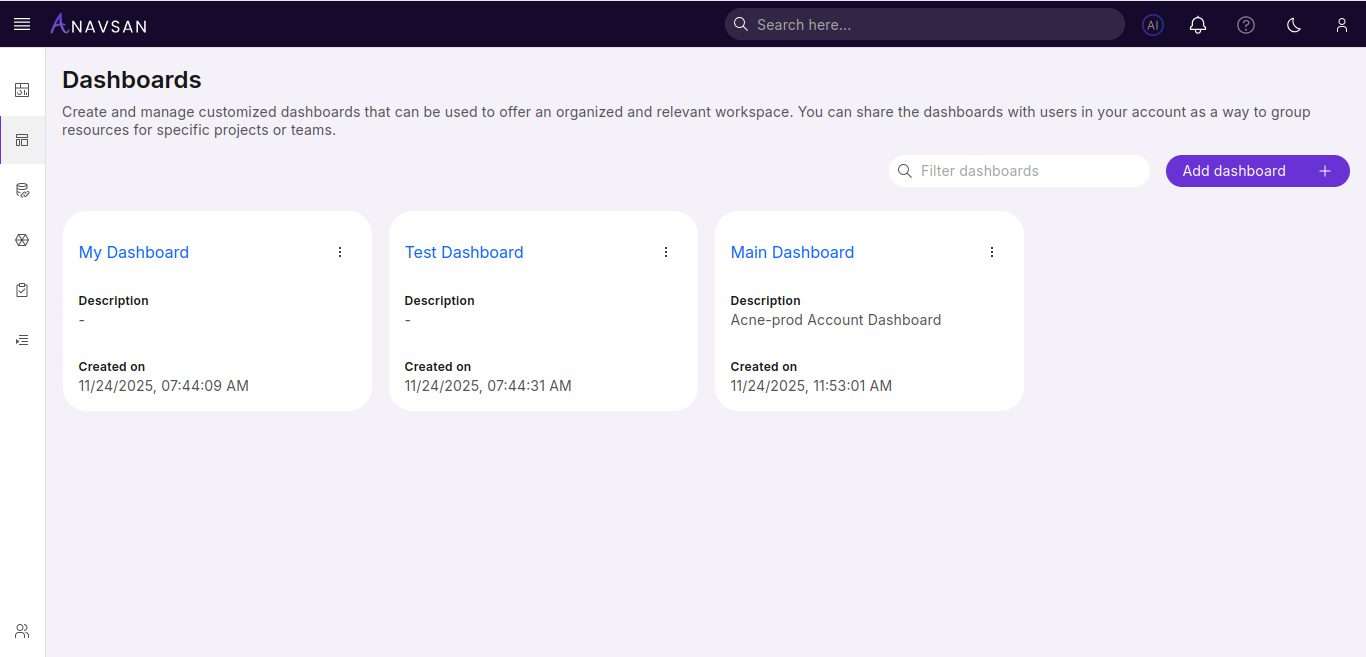
Each dashboard card shows:
- Title
- Description
- Created on date
You can use the search bar to filter dashboards by title.
View Dashboard
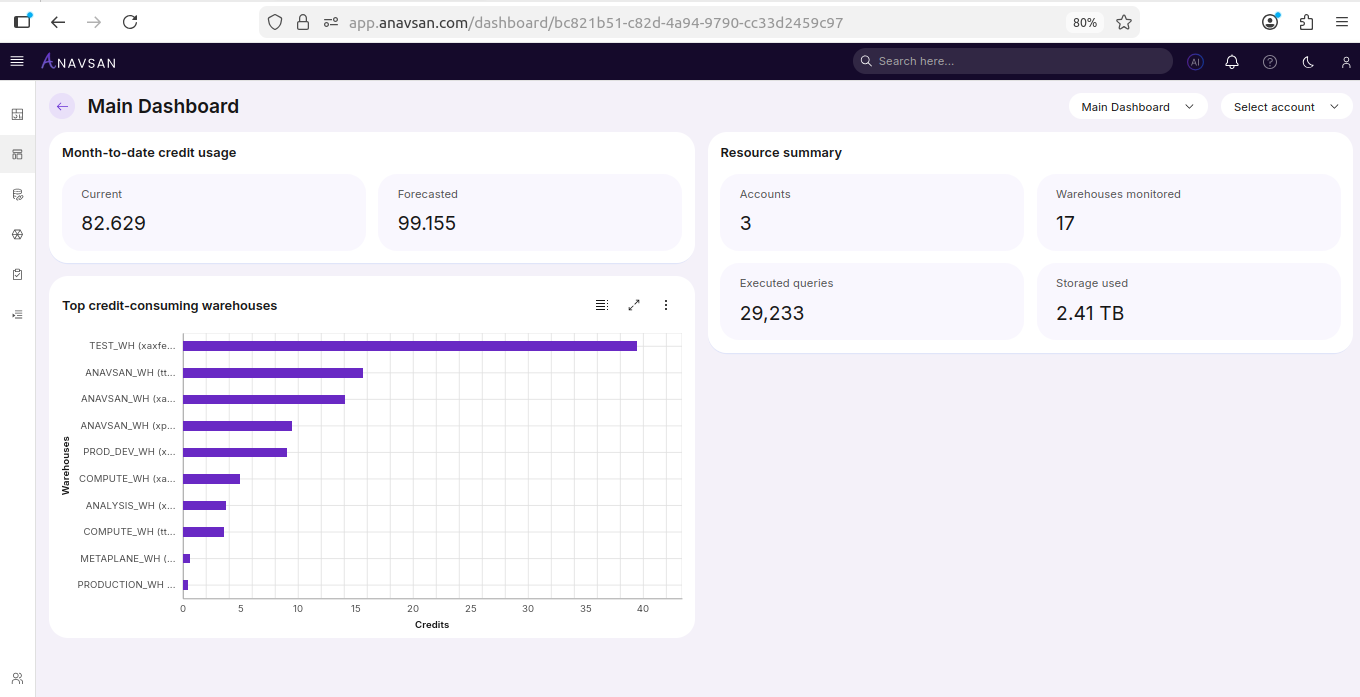
When you click a dashboard title from the list, you are taken to the Dashboard View page.
Using Filters in Dashboard View
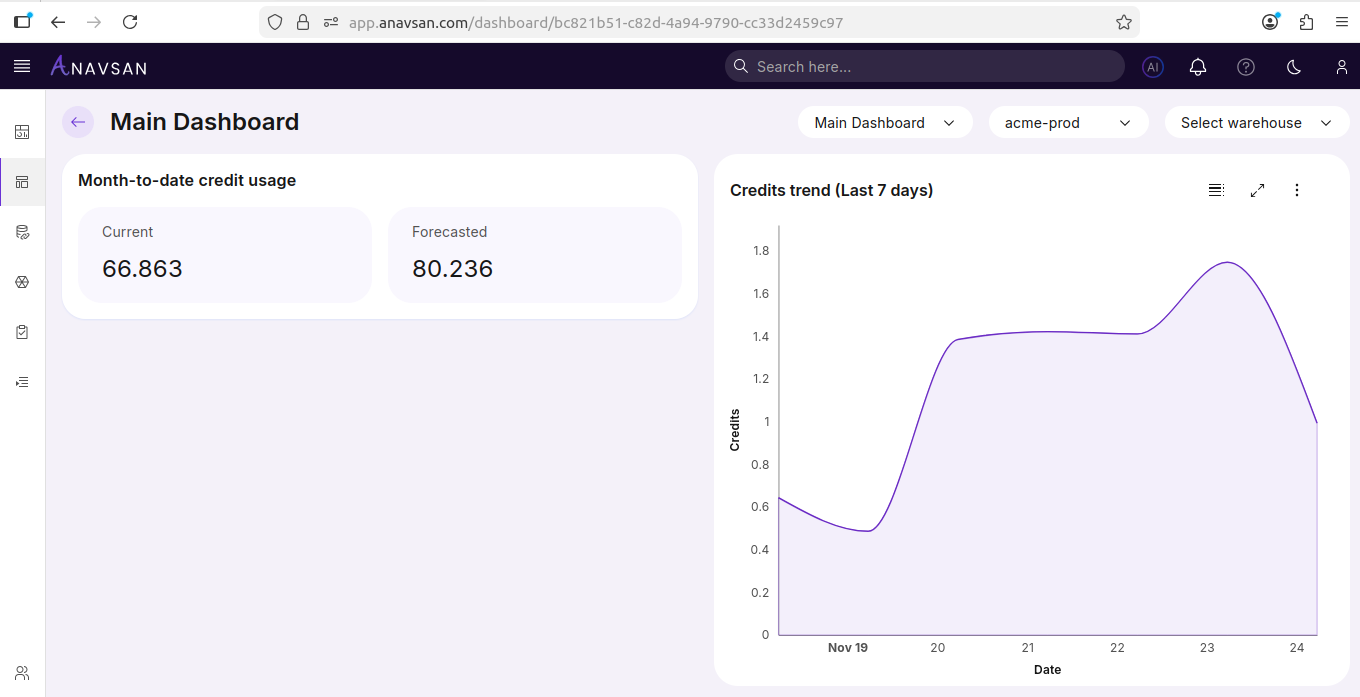
At the top of the page, you can switch between different data contexts using:
- Dashboard selector — Switch to another dashboard
- Account selector — Change the Snowflake account used for the dashboard
- Warehouse selector — Enabled only when the dashboard includes a Warehouse Credits Trend widget
Changing any filter automatically updates all widgets on the page.
Widget Behavior (View Mode)
- Widgets update based on the selected filters
- The layout is fixed — widgets cannot be rearranged in view mode
- Only the data changes; the widget structure and order remain the same
Dashboard Actions
Each dashboard card includes a menu with actions.
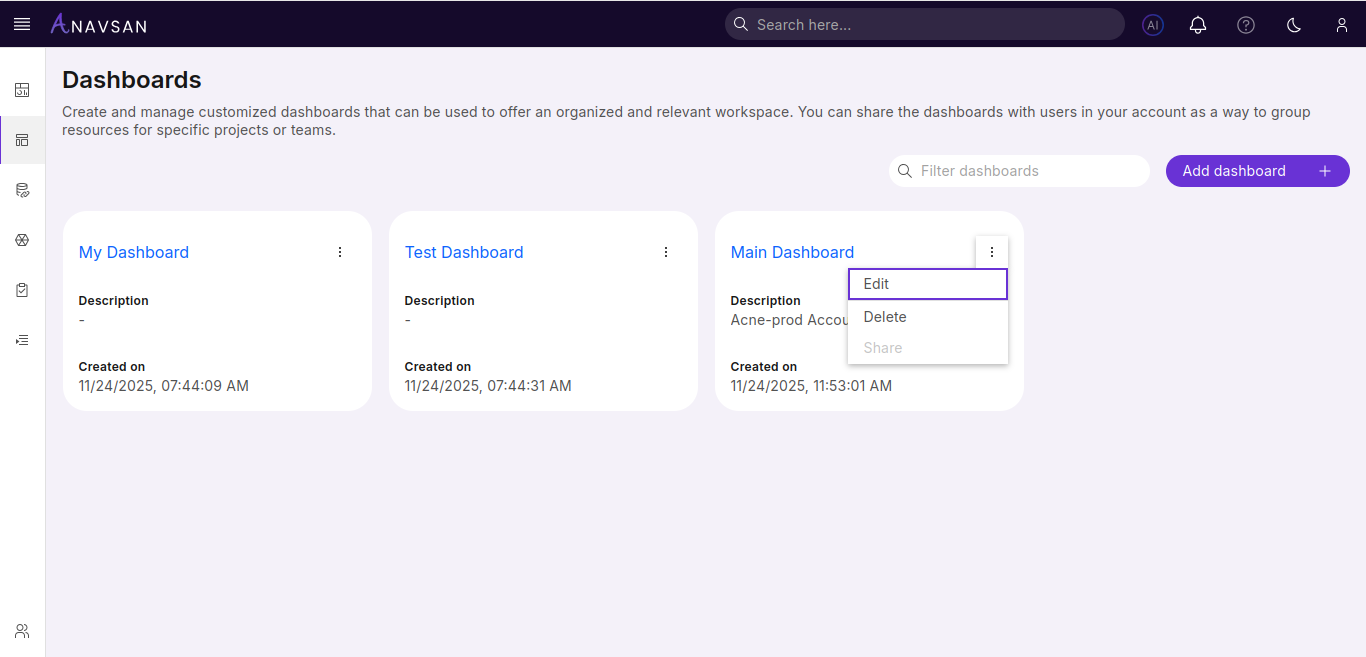
Available Actions
- Edit — Open the dashboard in edit mode.
- Delete — Permanently remove the dashboard.
- Share (Coming soon) — This feature will be available in an upcoming release.
Deleting a Dashboard
Selecting Delete opens a confirmation pop-up:
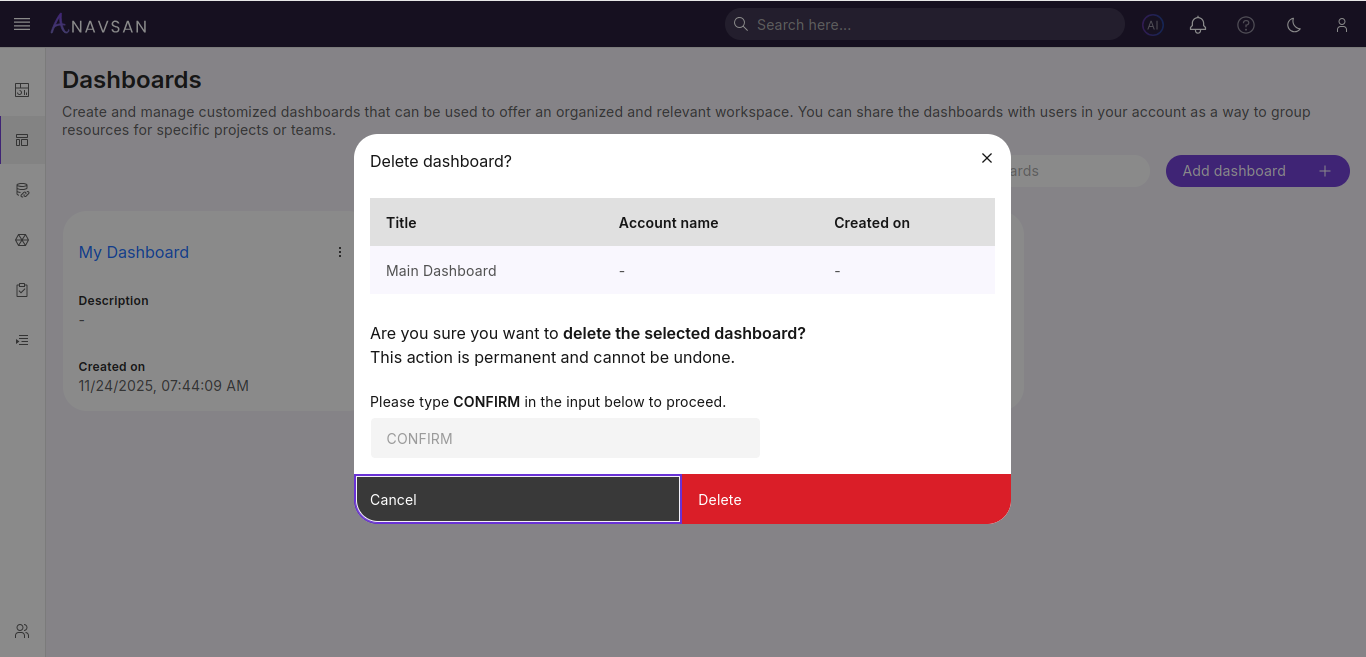
To proceed:
- Review the dashboard details.
- Type CONFIRM in the input box.
- Click Delete to permanently remove the dashboard.
Deleting a dashboard cannot be undone.